
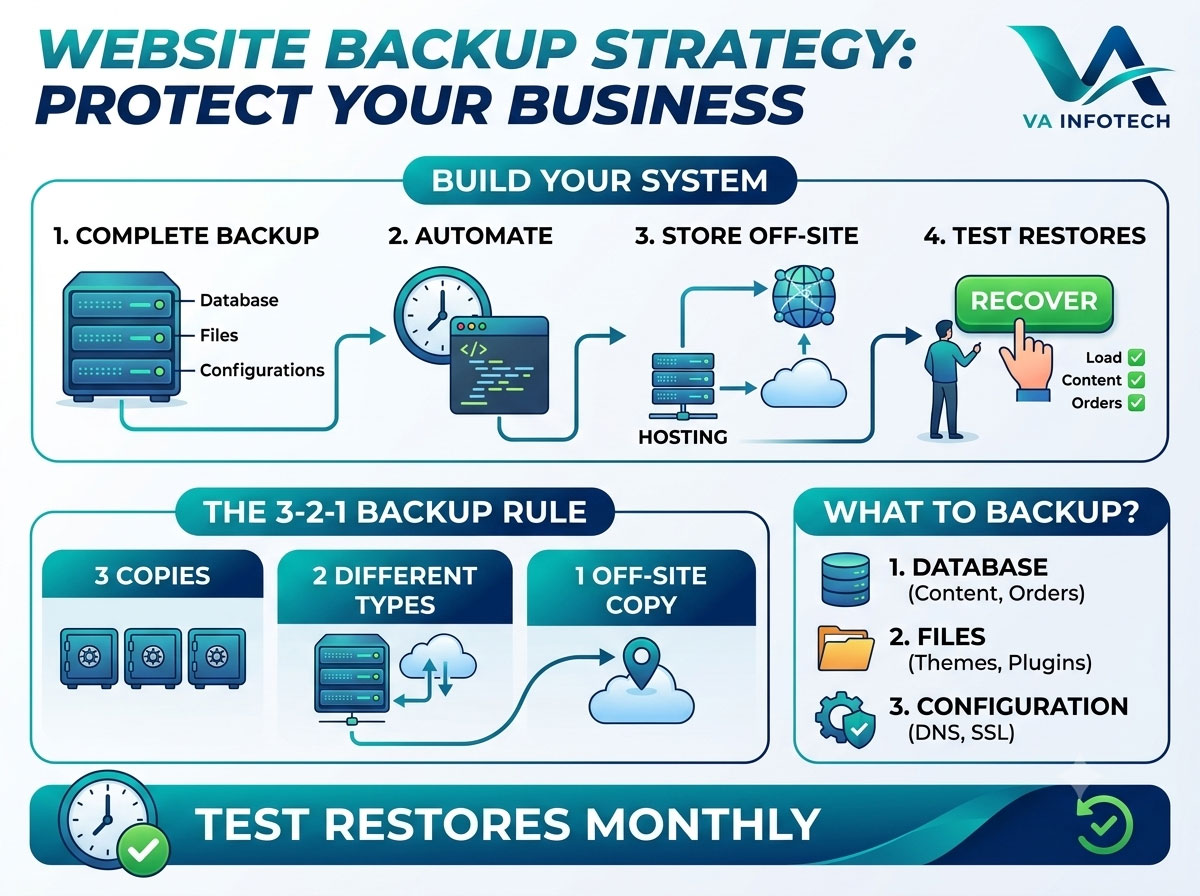
Most business owners only think about their website backup the moment they need one — after a hack, a botched plugin update, a hosting failure, or an accidental delete that takes the whole site down. By then, it’s too late to fix the mistake; you can only find out whether your safety net was actually there.
A website backup strategy isn’t a single setting you switch on once. It’s a system: what gets backed up, how often, where it’s stored, how long it’s kept, and — the step almost everyone skips — whether it actually restores when you need it to. This guide walks through how to build that system properly, so a bad day for your website doesn’t become a bad month for your business.
Why a Real Backup Strategy Matters More Than You Think
A website going down isn’t just an inconvenience. For most businesses, the website is the storefront, the lead-generation engine, and often the first impression a customer ever gets. Every hour it’s down or broken is lost revenue, lost trust, and — if you rank in search — lost SEO momentum that can take months to rebuild.
Websites break for reasons that have nothing to do with negligence:
- Hosting failures. Hard drives fail, servers crash, and data centers have outages. It happens even with reputable hosts.
- Hacks and malware. Compromised plugins, brute-forced admin logins, and injected malicious code are daily occurrences across the web, not rare events.
- Human error. A wrong file deleted, a bad database query run directly, a plugin update that breaks the whole layout — most website disasters are caused by well-meaning people, not attackers.
- Bad updates. CMS platforms, themes, and plugins update constantly, and not every update plays nicely with your specific setup.
- Natural and physical disasters. Fires, floods, and regional outages can take out a data center, and if your only backup lives in that same data center, it goes down with it.
None of these are avoidable with 100% certainty. What is avoidable is losing your website permanently because of them. That’s the entire point of a backup strategy — not preventing incidents, but making sure none of them are catastrophic.
What “Backup” Actually Needs to Include
One of the most common mistakes is backing up only the files — images, themes, and code — while leaving the database untouched. For most modern websites (WordPress, WooCommerce, and most CMS-driven sites included), the database is where your actual content lives: posts, pages, product listings, customer orders, and settings. A files-only backup restores a website that looks right but is missing everything dynamic.
A complete backup should cover:
- Website files — themes, plugins/extensions, uploads, and core CMS files
- Database — content, product/order data, user accounts, and configuration
- Email accounts and settings, if hosted alongside your website
- Server and application configuration files
- SSL certificates
- DNS records, kept documented separately in case you ever need to rebuild from scratch
Missing any one of these turns a “quick restore” into a multi-day rebuild.
How Often You Should Actually Back Up
Backup frequency should match how often your site changes — not a generic “weekly is fine for everyone” rule.
- E-commerce stores: Daily, at minimum. Ideally, real-time or near-real-time database backups, since every hour without a backup is potential lost order data.
- Content-heavy sites and blogs publishing regularly: Daily to every-other-day.
- Brochure/informational sites updated occasionally: Weekly is usually sufficient, with an on-demand backup taken manually before any major change (redesign, plugin install, migration).
- Before any update or change, regardless of your regular schedule: Always take a manual backup immediately before updating a theme, plugin, CMS core, or making structural changes. This single habit prevents the majority of “the site broke after an update” emergencies.
The 3-2-1 Backup Rule
This is the standard that professional IT and hosting teams build around, and it applies just as well to a business website as it does to enterprise data:
- 3 copies of your data — the live site plus at least two backups
- 2 different storage types — for example, your hosting server and a separate cloud storage service
- 1 copy stored off-site, physically or geographically separate from your primary hosting environment
The off-site copy is the part most businesses skip, and it’s the one that matters most. If your only backup lives on the same server as your live site, a server failure takes out both your website and your safety net at the same time. Store at least one backup in a completely separate location — a different cloud provider, a dedicated backup service, or offline storage.
Where to Store Backups
- Cloud storage (Google Drive, Dropbox, Amazon S3, or a dedicated backup service) — reliable, accessible, and easy to automate.
- Your hosting provider’s built-in backups — convenient, but never your only copy, since it’s still tied to the same infrastructure as your live site.
- A separate backup service or plugin with off-site storage built in — often the simplest way to satisfy the 3-2-1 rule without manual work.
- Local/offline storage — a useful additional layer for particularly critical data, though not practical as your primary method given restore speed.
Automate It — Don’t Rely on Memory
Manual backups fail for one predictable reason: someone forgets. The single highest-leverage thing you can do for your backup strategy is automate it completely, so it runs on schedule without anyone needing to remember. Most modern hosting platforms and CMS backup plugins support scheduled, automatic backups with off-site storage built in — set it up once, and audit it periodically rather than depending on a recurring manual task nobody has time for.
Test Your Restores — A Backup You Can’t Restore Isn’t a Backup
This is the step almost every business skips, and it’s the one that matters most. A backup file sitting untested in storage is an assumption, not a safeguard. Corrupted backup files, incomplete exports, and version mismatches are common enough that “we have backups” and “we can actually restore from our backups” are two different claims.
Build in a restore test on a schedule — quarterly at minimum for most businesses, monthly for anything transaction-heavy:
- Restore the backup to a staging environment (not your live site)
- Confirm the site loads correctly, the database connects, and content displays as expected
- Check that recent orders, form submissions, or content updates are present
- Log the test — date, backup used, result — so you have a record if something needs review later
If you’ve never actually tested a restore, treat that as an open risk, not a minor to-do.
How Long to Keep Backups (Retention)
Keeping every daily backup forever is unnecessary and expensive; keeping too few is dangerous, because some problems (a slow data corruption, a hack that sat undetected for weeks) aren’t discovered immediately. A reasonable retention pattern most businesses can work from:
- Daily backups — kept for 7 to 14 days
- Weekly backups — kept for 1 to 3 months
- Monthly backups — kept for 6 to 12 months, or longer for compliance-driven industries
This gives you enough recent restore points for everyday issues, plus older snapshots to fall back on if a problem is discovered late.
Recovery Time: Know Your Number Before You Need It
Recovery Time Objective (RTO) is simply: how long can your business tolerate the website being down? For a high-traffic e-commerce store, that might be under an hour. For a smaller brochure site, a few hours might be genuinely fine. Knowing this number in advance — rather than discovering it during an actual outage — determines what kind of backup and hosting setup you actually need. A business with a one-hour RTO needs automated, tested, rapid-restore infrastructure; a business with a same-day RTO has more flexibility in how it manages backups.
Common Website Backup Mistakes
- Backing up files but not the database (or vice versa) — an incomplete backup that looks complete until you need it.
- Storing all backups on the same server as the live site — one hosting failure takes out both.
- Never testing a restore — the single most common reason “we had backups” doesn’t actually save a business.
- No backup taken before updates — the majority of “the site is broken” emergencies happen right after a plugin, theme, or CMS update.
- No retention plan — either running out of storage from keeping everything, or losing older restore points too early.
- Treating backups as a set-and-forget task — automation still needs periodic auditing to confirm it’s actually running.
Backup Strategy Differs by Platform
Your specific approach depends heavily on how your website is built. A WordPress site typically backs up via plugin or host-level tools covering files and database together. A custom-built website may need a more tailored backup setup across application files, database, and any third-party integrations. If you’re currently deciding between an off-the-shelf builder and a custom-developed site, it’s worth factoring backup and recovery flexibility into that decision — our guide on Custom Website Development vs Website Builders covers how the two approaches differ in control and long-term maintainability, backups included.
Backups Are Part of a Bigger Website Health Picture
A solid backup strategy protects you from data loss, but it’s one piece of a broader website maintenance routine that also includes security monitoring, uptime checks, software updates, and performance reviews. Businesses that treat these as one ongoing system — rather than isolated tasks handled only when something breaks — consistently avoid the worst-case scenarios. It’s also worth pairing backup discipline with a regular technical health check; our Complete SEO Audit Checklist for Business Websites is a good companion resource, since site health and SEO stability are more connected than most business owners realize — a hacked or restored-from-an-old-backup site can quietly undo months of ranking progress.
Where your website is hosted also affects how strong your backup options are to begin with. Reliable, well-configured Web Hosting with built-in backup infrastructure gives you a meaningfully stronger starting point than budget hosting with no redundancy — it’s worth treating as part of your backup strategy, not a separate decision.
Final Thoughts
A website backup strategy isn’t about paranoia — it’s about making sure a bad day never becomes a permanent loss. Automated, complete backups (files and database), stored in at least two places with one off-site, retained on a sensible schedule, and actually tested through periodic restores: that combination covers the vast majority of what can go wrong.
Start with the two steps most businesses skip — moving at least one backup copy off-site, and running a single test restore this month. Those two alone close most of the real risk.
If you’d rather have this handled for you, Va Infotech’s Website Maintenance service includes automated backups, restore testing, security monitoring, and ongoing updates, so your site stays protected without you having to manage it manually. It pairs well with our Website Design and Website Redesign services for businesses building or refreshing a site with a proper backup and recovery plan built in from day one.
Explore more website health and SEO guides on the Va Infotech blog.