
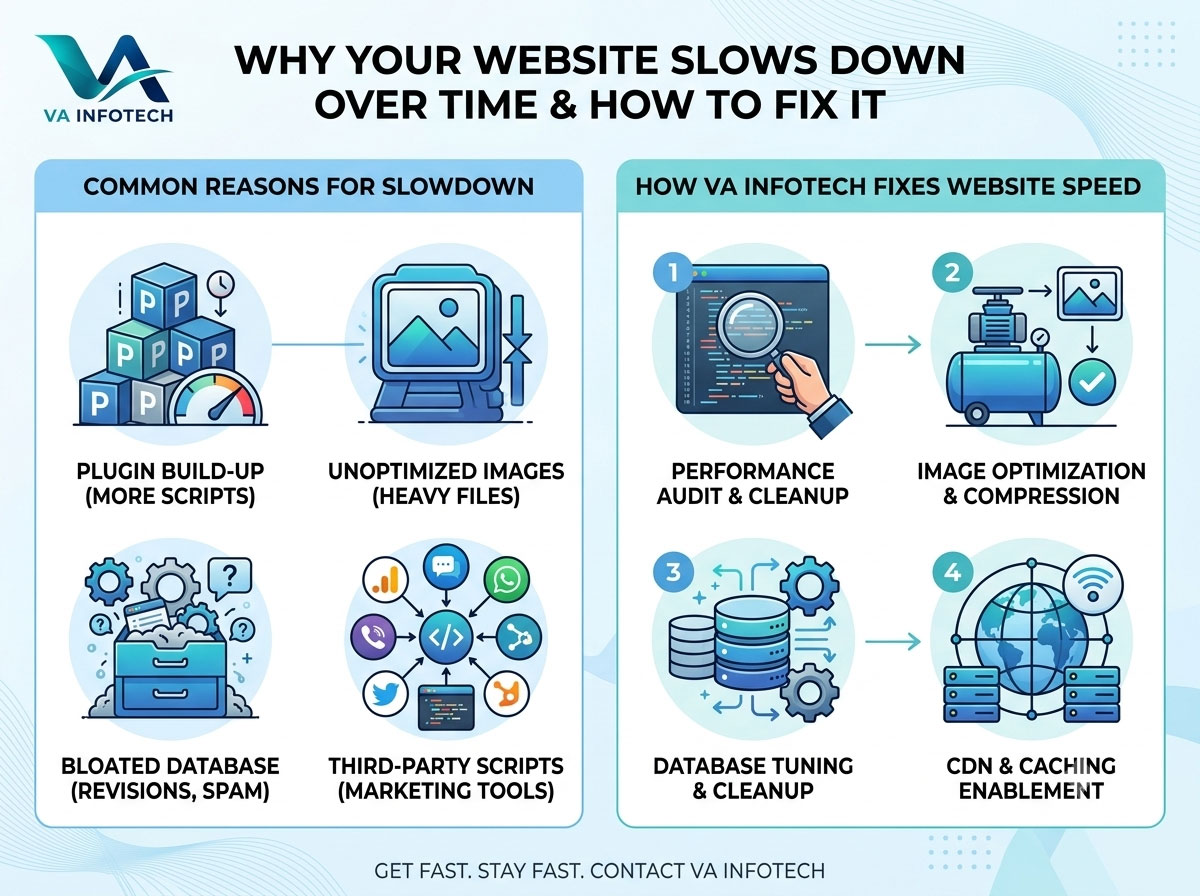
When your website launched, it probably felt quick. Pages loaded almost instantly, images appeared right away, and nothing felt sluggish. Then, somewhere between six months and two years later, things changed. Pages take longer to appear, the admin panel crawls, and your team quietly stops clicking around the site because it’s frustrating.
This is normal. Almost every website gets slower over time, and it rarely happens because of one big mistake. It’s a slow build-up of small things: one more plugin, one more tracking script, a few hundred uncompressed photos, a database nobody has cleaned in years.
At Va Infotech, we see this pattern in the sites that come to us for audits. In this guide, we’ll explain why website speed degrades, how to tell what’s slowing your site down, and the exact steps to get it fast again and keep it that way.
Why Website Speed Matters More Than Most Businesses Realize
Speed is not a technical vanity metric. It affects four things that matter to your business directly.
Conversions and revenue. Visitors are impatient. Every extra second of load time increases the chance someone leaves before seeing your offer. For a lead generation site, that means fewer enquiry forms. For an online store, it means abandoned carts.
Search rankings. Google uses page experience signals, including the Core Web Vitals, as part of how it evaluates pages. Speed alone won’t carry a weak page to position one, but a slow site gives your competitors an edge when content quality is similar. If organic traffic is a priority, speed work belongs inside your wider search engine optimization strategy.
User trust. A slow site feels outdated and unreliable, even if your business is excellent. People judge credibility in seconds.
Ad spend efficiency. If you pay for traffic through PPC campaigns, a slow landing page wastes money on every click that bounces before the page finishes loading.
The 8 Main Reasons Website Speed Gets Slower Over Time
1. Plugin and Extension Build-Up
On WordPress and other CMS platforms, plugins are the most common cause of slowdown. A site that began with five plugins often ends up with twenty-five: SEO, forms, popups, sliders, security, social feeds, analytics, chat widgets, and so on.
Each plugin may load its own CSS and JavaScript files on every page, even pages where it’s not used. Some also run extra database queries. Individually they’re small, but together they add up. Many old plugins also stay installed long after the feature they provided was removed from the site.
If you’re still deciding on your platform, our comparison of WordPress vs Custom Website Development explains how plugin-heavy builds affect long-term performance.
2. Unoptimized and Oversized Images
Images are usually the heaviest part of any page. Over time, teams upload photos straight from a phone or camera at 4,000 pixels wide, in formats that aren’t web-friendly, and nobody compresses them.
A single 5 MB hero image can slow a page more than all of its scripts combined. Multiply that across a blog with hundreds of posts and a product catalog with thousands of photos, and your site’s weight grows steadily with every upload.
3. A Bloated Database
Every time your site is used, it writes data. Post revisions, spam comments, expired temporary data, orphaned plugin tables, and old session records all pile up. Eventually the database holds far more than it needs, and queries that were instant at launch start taking noticeably longer.
This is especially visible in the admin dashboard. If saving a post takes ten seconds, your database is a likely suspect.
4. Too Many Third-Party Scripts
Marketing tools are a hidden cause of slowness. Analytics, heatmaps, chat widgets, ad pixels, social embeds, review badges, and booking widgets all load code from external servers that you don’t control.
Teams add these one at a time, each with a good reason. Rarely does anyone go back and remove the ones that are no longer used. A site can end up loading scripts from a dozen outside services, and any one of them being slow makes your page slow too.
5. Outdated Software, Themes, and Code
Core platform updates often include performance improvements. Sites that skip updates miss them, and they also become less compatible with newer plugins and PHP versions. Old themes may use outdated code, and themes that bundle many built-in features (sliders, animations, builders) load a lot of code you may never use.
Skipping updates is also a security risk, which is why consistent website maintenance matters for both speed and safety.
6. Weak or Overloaded Hosting
A hosting plan that suited a 20-page brochure site may not suit a site with 300 pages, a growing blog, and 10× the traffic. Cheap shared hosting puts your site on a server with many others, so their traffic spikes can slow you down too.
Signs of a hosting problem include a slow first response (high Time to First Byte), slowdowns at peak hours, and speed that doesn’t improve no matter how much you optimize the site itself. Good web hosting is the foundation everything else rests on.
7. No Caching or CDN
Without caching, your server rebuilds each page from scratch for every visitor, running code and querying the database each time. Caching stores a ready-made version so pages are delivered almost instantly.
A Content Delivery Network (CDN) goes further by serving your files from servers closer to each visitor. If you’ve grown beyond your local market and now have visitors from other cities or countries, a missing CDN becomes much more noticeable.
8. Content and Design Creep
Websites rarely stay as simple as they launched. Pages gain autoplay videos, large background sliders, animated sections, custom fonts, popups, and embedded feeds. Each addition makes sense in isolation, but together they turn a lean page into a heavy one.
This is why a periodic website redesign sometimes does more for speed than any amount of patching. Sometimes the real fix is to simplify.
How to Measure Your Website Speed First
Before you change anything, get a baseline. Without one, you can’t tell whether your fixes worked.
Use these free tools:
- Google PageSpeed Insights, which shows real-user data and lab data
- Google Search Console’s Core Web Vitals report, which flags problem URLs across your whole site
- GTmetrix or WebPageTest for detailed waterfall charts of what loads and when
Understand the three Core Web Vitals:
- Largest Contentful Paint (LCP): How fast the main content appears. Aim for 2.5 seconds or less.
- Interaction to Next Paint (INP): How quickly the page responds when someone taps or clicks. Aim for 200 milliseconds or less.
- Cumulative Layout Shift (CLS): How much the layout jumps around while loading. Aim for 0.1 or less.
Test your homepage, your top service or product pages, and a blog post. Test on mobile as well as desktop, since most visitors now browse on phones and mobile scores are usually lower.
How to Fix a Slow Website: Step-by-Step
Step 1: Audit and Remove Unused Plugins and Scripts
Go through your plugin list and ask three questions about each one: Is it still used? Does another plugin already do this? Is it actively maintained?
Deactivate and delete anything that fails those tests. Then do the same for tracking and marketing scripts. If nobody looks at a heatmap report, remove the heatmap. Fewer moving parts means a faster, safer site.
Take a full backup before making changes. Our guide on Website Backup Strategy explains how to do that properly.
Step 2: Compress and Resize Every Image
- Resize images to the dimensions they actually display at.
- Convert to modern formats like WebP or AVIF where supported.
- Compress with a plugin or tool, and bulk-optimize your existing media library, not just new uploads.
- Enable lazy loading so images below the fold load only when needed.
- Never lazy-load your main hero image, since it hurts LCP.
For online stores with large catalogs, this step alone often delivers the biggest improvement. Our eCommerce Website Design work builds image handling into product templates from the start.
Step 3: Clean and Optimize the Database
Delete old post revisions, spam and trashed comments, expired transient data, and tables left by plugins you no longer use. Then optimize the database tables. Do this carefully, and always with a backup in place.
Limiting the number of revisions stored for each post prevents the problem from coming back.
Step 4: Turn On Caching
Enable page caching, browser caching, and object caching if your hosting supports it. Good caching is often the single fastest win on a dynamic site.
Be careful with pages that shouldn’t be cached, such as shopping carts, checkout pages, and account areas. Configure those exclusions correctly.
Step 5: Use a CDN
A CDN distributes static files like images, CSS, and JavaScript across servers worldwide. It reduces load on your main server and shortens the distance data travels to each visitor. For most business sites, this is a low-cost, high-impact upgrade.
Step 6: Minify and Defer Code
Minifying removes unnecessary characters from CSS, JavaScript, and HTML files, which makes them smaller. Deferring non-critical JavaScript stops it from blocking the page while it renders.
Combine this with removing unused CSS where possible. Test thoroughly after each change, since aggressive code optimization can occasionally break layouts or features.
Step 7: Fix Fonts and Layout Shifts
Limit yourself to one or two font families and only the weights you need. Preload the key font files and use font-display settings so text appears immediately. Set explicit width and height on images and embeds so the layout doesn’t jump as they load.
Step 8: Upgrade Hosting If You’ve Outgrown It
If your Time to First Byte is consistently slow even after optimization, the server is the bottleneck. Consider moving to a managed WordPress host, a VPS, or a cloud plan with enough resources for your current traffic. Also make sure you’re running a current, supported PHP version, since newer versions are significantly faster.
Step 9: Update Everything and Replace Heavy Themes
Keep your core platform, theme, and plugins up to date. If your theme is bloated or abandoned, plan a move to a lightweight, well-maintained alternative. Sometimes the cleanest path is a rebuild through professional website design rather than years of patching an aging foundation.
Step 10: Retest and Compare
Re-run your tests and compare against your baseline. Check mobile and desktop, and look at real-user data in Search Console over the following weeks, since field data updates gradually.
How to Stop Your Website From Slowing Down Again
Speed is not a one-time fix. Without a routine, the same problems return within months. Here is a simple maintenance rhythm:
Monthly
- Update core, theme, and plugins
- Check backups are running and restorable
- Review uptime and error reports
Quarterly
- Run PageSpeed Insights on your key pages
- Review plugins and third-party scripts
- Optimize newly uploaded images and clean the database
Yearly
- Review your hosting plan against your traffic
- Audit the design, content, and tech stack for bloat
- Run a full technical review. Our Complete SEO Audit Checklist for Business Websites is a good template.
Set a performance budget. Decide in advance how heavy your pages are allowed to be, and make anyone adding a new video, plugin, or script justify its cost against that budget.
Speed and SEO: How They Connect
Faster sites are easier for search engines to crawl, and they give visitors a smoother experience, which supports engagement and conversions. If you’re building organic visibility, combine speed work with good content structure, as covered in our guides on Keyword Mapping and Google AI Overviews SEO.
Local businesses benefit especially, since many local searches happen on mobile devices. If that’s you, read How to Get More Local Leads From Google Search alongside this guide. If you run an online store, pair your speed work with our eCommerce SEO Checklist for New Online Stores.
As AI-driven search grows, clean, fast, well-structured sites are also easier for AI systems to read and cite. That’s part of what our Large Language Model SEO service helps businesses prepare for.
What Does It Cost to Fix a Slow Website?
It depends on the cause. Image compression and plugin cleanup might take only a few hours of work. A full performance overhaul with hosting migration, code optimization, and template changes costs more. If your site is very old or heavily patched, a rebuild may be better value.
For realistic numbers on build and rebuild budgets, see How Much Does Website Development Cost in India in 2026?. If you’re also planning marketing investment around the site, our guide on How Much Should a Small Business Spend on Digital Marketing? can help you plan the budget.
Frequently Asked Questions
Why is my website suddenly slow?
A sudden slowdown usually points to a specific change: a new plugin, an update that conflicts with something else, a traffic spike, a hosting problem, or a newly added third-party script. Check what changed just before the slowdown began.
What is a good website loading time?
Aim for your main content to appear within about 2.5 seconds on a typical mobile connection. Faster is better, but this is the benchmark Google’s LCP guidance uses.
Do too many plugins slow down a website?
Quantity matters less than quality. One badly coded plugin can slow your site more than ten lightweight ones. That said, every extra plugin adds risk and maintenance work, so keep only what you need.
Does website speed affect SEO?
Yes. Page experience, including Core Web Vitals, is part of how Google evaluates pages. It works alongside content quality and relevance rather than replacing them.
How often should I check my website speed?
Test your key pages at least once a quarter, and also after any major update, redesign, or new tool installation.
Can I fix website speed myself?
Basic steps like compressing images, removing unused plugins, and enabling caching are manageable for many owners. Hosting changes, code optimization, and database work are safer in the hands of a developer.
Final Thoughts
Websites don’t slow down because something is “broken.” They slow down because they grow, and growth without maintenance creates weight. More plugins, more images, more scripts, a bigger database, and the same old hosting plan all stack up quietly until visitors feel it.
The good news is that most slow sites can be made fast again with a clear process: measure, clean up, optimize, and then keep up a routine so the problem doesn’t return.
At Va Infotech, we help businesses diagnose slow websites, fix performance problems, and keep their sites fast through ongoing website maintenance. If you’d like an expert look at what’s slowing your site, browse our portfolio to see our work, or contact us for a free consultation. You can also explore more guides on the Va Infotech blog or visit vainfotech.com to learn more about our services.